

Clipboard Synchronization
Clipboard synchronization allows you to copy and paste text and files between your local computer and a remote computer accessed through the remote control session.
Settings
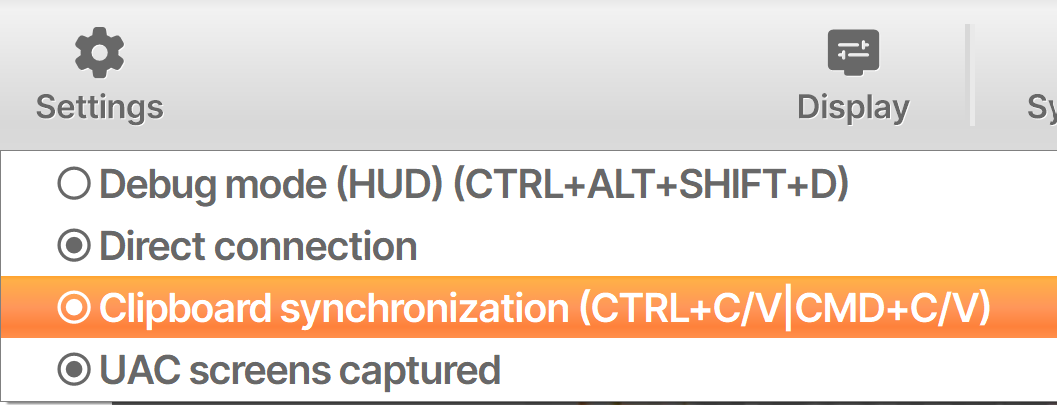
By default, clipboard synchronization is enabled, allowing you to seamlessly copy and paste content between your local and remote computers.
If you wish to disable clipboard synchronization, you can do so through the settings in the remote control session interface:
How Clipboard Synchronization Works
To copy content between your local and remote computers, use the standard keyboard shortcuts:
- On Windows and Linux: Ctrl+C to copy, Ctrl+V to paste
- On Mac: Cmd+C to copy, Cmd+V to paste
Copying from the local computer to the remote computer
- Select the text or file on your local computer.
- Press Ctrl+C (or Cmd+C on Mac).
- Click inside the remote control session.
- Press Ctrl+V (or Cmd+V on Mac) to paste the content on the remote computer.
Copying from the remote computer to the local computer
- Select the text or file on the remote computer.
- Press Ctrl+C (or Cmd+C on Mac).
- Click outside the remote control session or select the destination on your local computer.
- Press Ctrl+V (or Cmd+V on Mac) to paste the content locally.
The operation must be initiated using the keyboard shortcuts Ctrl+C / Ctrl+V (Windows and Linux) or Cmd+C / Cmd+V (Mac).
Important: Right-clicking and selecting Copy or Paste is not supported for clipboard synchronization.
For more information on how to interact with a remote session, please read Interact with the Remote Session .