

Control a Remote Session on iOS
Once connected to a remote computer, the full desktop is displayed on your iPhone or iPad screen. This guide covers all the touch controls and tools available during a remote session.
Touch Control Modes
TSplus Remote Support for iOS offers two touch control modes. You can switch between them at any time using the touch mode button in the floating toolbar.
Touch Mode (Trackpad)
This is the default mode. It works like a laptop trackpad:
- Slide your finger to move the remote cursor across the screen.
- Tap to perform a left click at the current cursor position.
- Double tap to double-click.
This mode is recommended for precise work, as the cursor position and your tap action are separated — you can position the cursor exactly where you need it before clicking.
Cursor Mode (Direct)
In this mode, the remote cursor follows your finger directly:
- Tap anywhere on the screen and the cursor jumps to that exact position and clicks.
- Drag your finger to move the cursor in real time.
This mode feels more natural on a touch screen and is well suited for quick navigation.
Right-Click
Three ways to perform a right-click on the remote computer:
| Method | How to |
|---|---|
| Long press | Hold your finger on the screen for about 1 second |
| Toolbar button | Tap the right-click button in the floating toolbar, then tap where you want to right-click |
| Two-finger tap | Tap with two fingers simultaneously anywhere on the screen |
Zoom and Navigation
Use standard iOS gestures to zoom in on the remote desktop:
- Pinch outward to zoom in (up to 8x magnification).
- Pinch inward to zoom out.
- Pan with two fingers to navigate the zoomed view.
Zooming is essential when working with small UI elements, reading text, or performing precise operations on a phone screen.
Virtual Keyboard
Tap the keyboard button in the floating toolbar to open the iOS virtual keyboard. Everything you type is sent to the remote computer in real time.
The keyboard supports:
- Standard text input
- Special characters and accents
- Modifier keys: Windows/Command, Alt, Control, Shift (adapted to the remote device)
To dismiss the keyboard, tap the keyboard button again or tap outside the keyboard area.
Floating Toolbar
The floating toolbar appears during every remote session and provides quick access to essential controls.
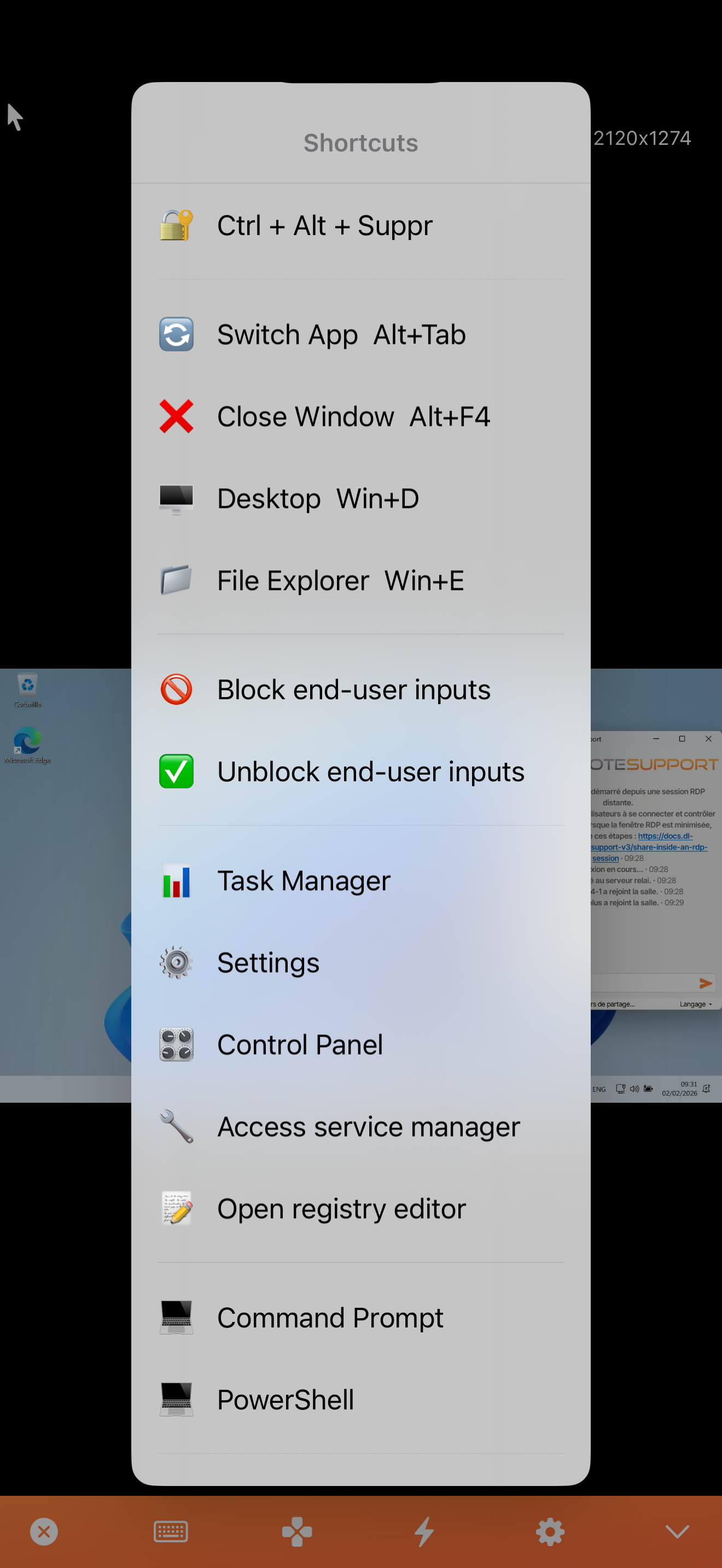
The toolbar includes:
| Button | Action |
|---|---|
| Touch Mode | Switch between Touch (Trackpad) and Cursor (Direct) modes |
| Right Click | Enable right-click mode for the next tap |
| Keyboard | Show/hide the virtual keyboard |
| Modifier Keys | Send Ctrl, Alt, Shift, or Cmd modifiers |
| Special Keys | Access Escape, arrow keys, and function keys |
| Monitors | Switch between multiple remote monitors |
| Chat | Open the chat panel (see Chat during a Session) |
| Disconnect | End the remote session |
Keyboard Shortcuts
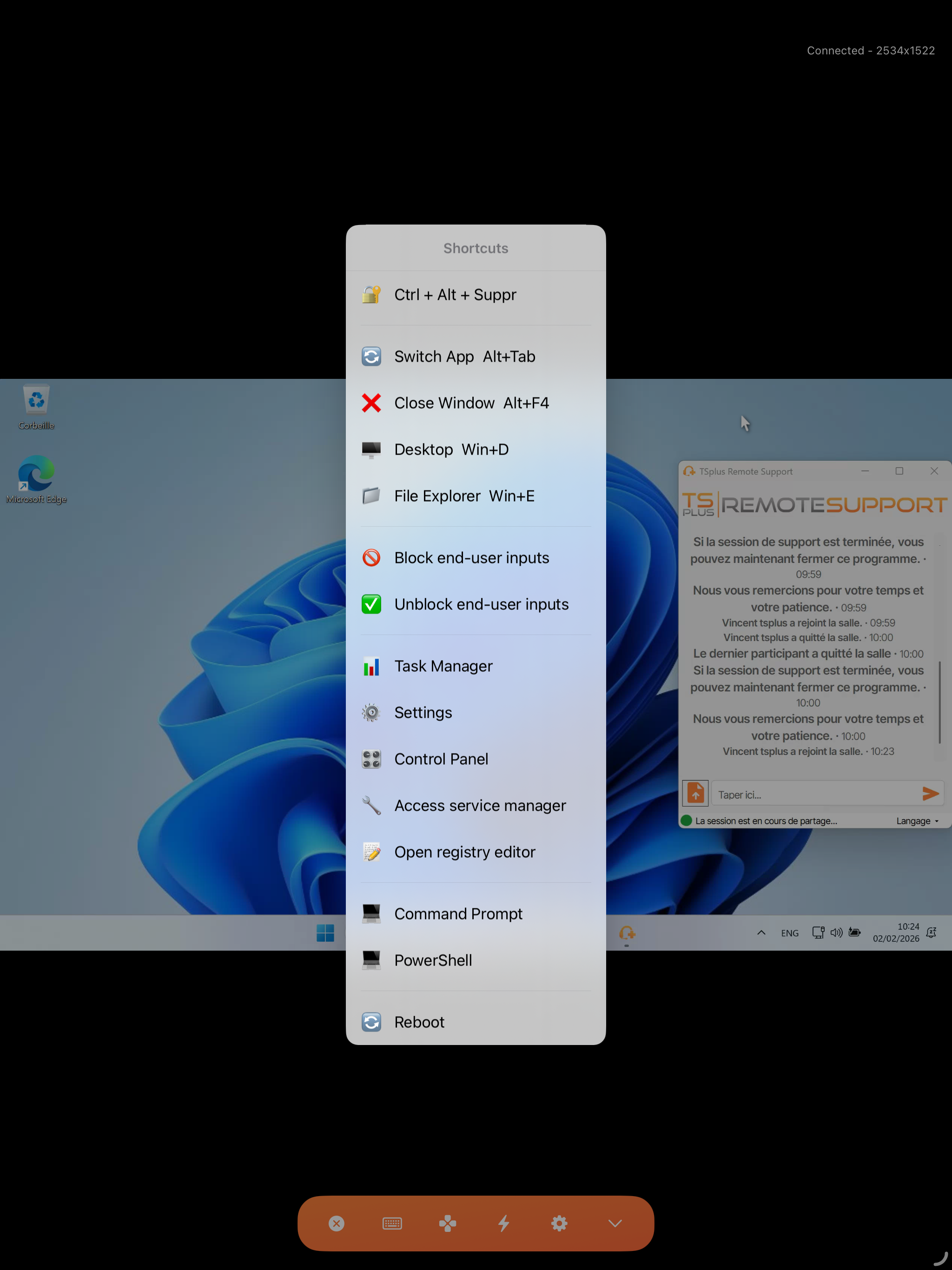
Using the modifier keys in the toolbar, you can send common shortcuts to the remote computer:
- Ctrl+C / Ctrl+V — Copy and paste
- Alt+Tab — Switch windows
- Ctrl+Alt+Del — Security screen (Windows)
- Cmd+Space — Spotlight (Mac)
To send a shortcut: tap the modifier key(s) in the toolbar, then tap the corresponding letter on the virtual keyboard.
Multi-Monitor Support
If the remote computer has multiple monitors, you can switch between them using the Monitors button in the toolbar.
Tap the button to see a list of available monitors and select the one you want to view. The remote desktop display will update immediately.
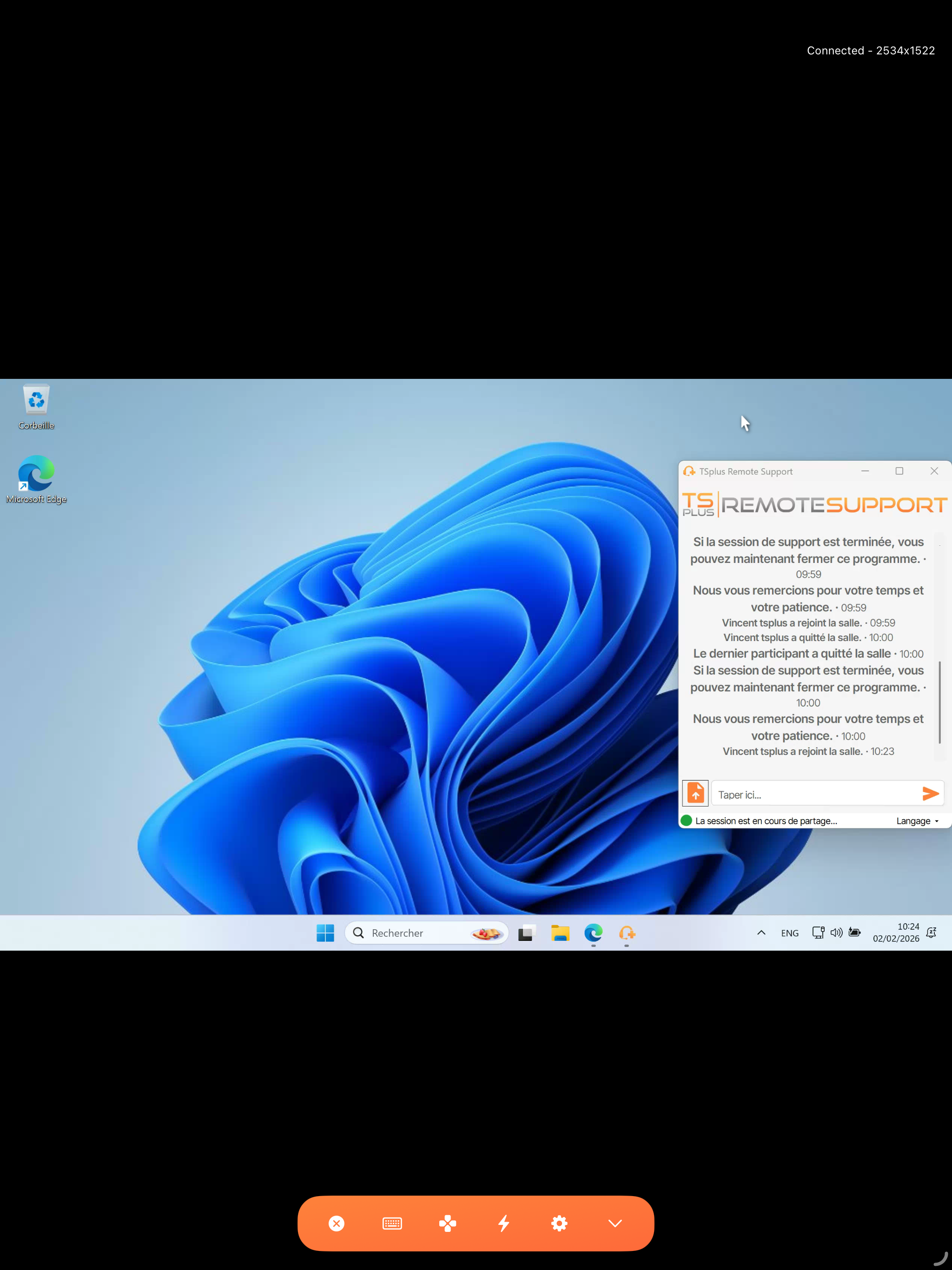
Session on iPad
The iPad provides a more comfortable experience thanks to its larger screen. All features work identically, with more screen real estate for the remote desktop and the toolbar.
Tips for Best Experience
- Use Wi-Fi for the smoothest experience. Cellular connections work but may introduce latency.
- Zoom in when working with small buttons or text fields.
- Use Touch Mode (Trackpad) for precise cursor positioning.
- Use Cursor Mode (Direct) for quick, casual navigation.
- Landscape orientation is often more comfortable for remote desktop control, especially on iPhone.
- iPad is recommended for extended remote sessions, as the larger display reduces the need for constant zooming.
Disconnecting
To end a remote session:
- Tap the Disconnect button in the toolbar, or
- Tap the back/close button at the top of the screen.
The session will be terminated and you will return to the main screen.