

Get Started on iOS
Download TSplus Remote Support
TSplus Remote Support for iOS is available on the Apple App Store.

The app is compatible with iPhone and iPad running iOS 13.0 or later.
Connect to a Remote Computer
When you launch TSplus Remote Support, the app opens directly on the connection screen. No account is required to start a remote session — just enter the connection details provided by the remote user.
Connect by ID (no account needed)
- On the main screen, enter the Remote ID (9-digit code) provided by the end-user in the connection field.
- Tap Connect.
- Enter the password provided by the end-user.
- The remote desktop will appear on your screen.
The Remote ID and password are displayed on the end-user’s TSplus Remote Support client. See Share your Screen for more information.
Connect from the Devices List (account required)
If you have registered devices configured for unattended access, you can connect from the Devices tab:
- Tap the Devices tab at the bottom of the screen.
- Your registered devices are listed with their online/offline status.
- Tap on an online device to connect instantly.
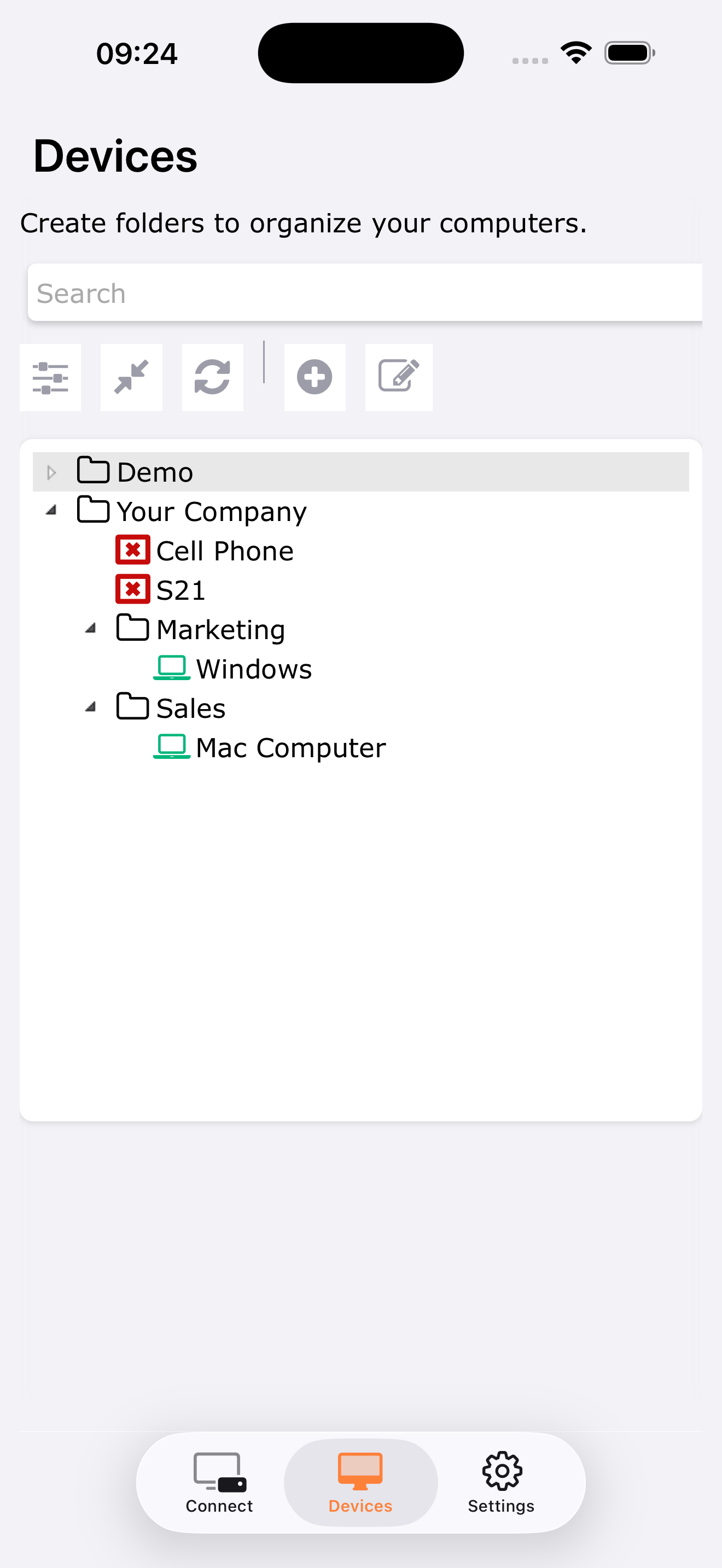
This feature requires signing in to your account (see below).
For more details on managing your devices list, see Manage Devices on iOS.
Sign In (optional)
Signing in is not required to use TSplus Remote Support. You can connect to any remote computer using an ID and password without an account.
However, signing in unlocks additional features:
- Devices list: Save and manage your remote devices for one-tap access.
- Account settings: Customize your display name and preferences.
To sign in:
- Go to the Settings tab and tap Log In, or
- Go to the Devices tab and tap Log In.
Enter your email address and password to sign in.
If you don’t have an account yet, tap Register to create one directly from the app, or sign up at tsplus.net/remote-support to start your free 15-day trial.
If you forgot your password, tap Forgot Password to receive a reset link by email.
Your First Remote Session
Once connected, the remote computer’s desktop appears on your screen. You can interact with it using touch gestures:
- Tap to click
- Slide your finger to move the cursor
- Pinch to zoom in/out (up to 8x)
- Two-finger pan to navigate the zoomed view
- Long press to right-click
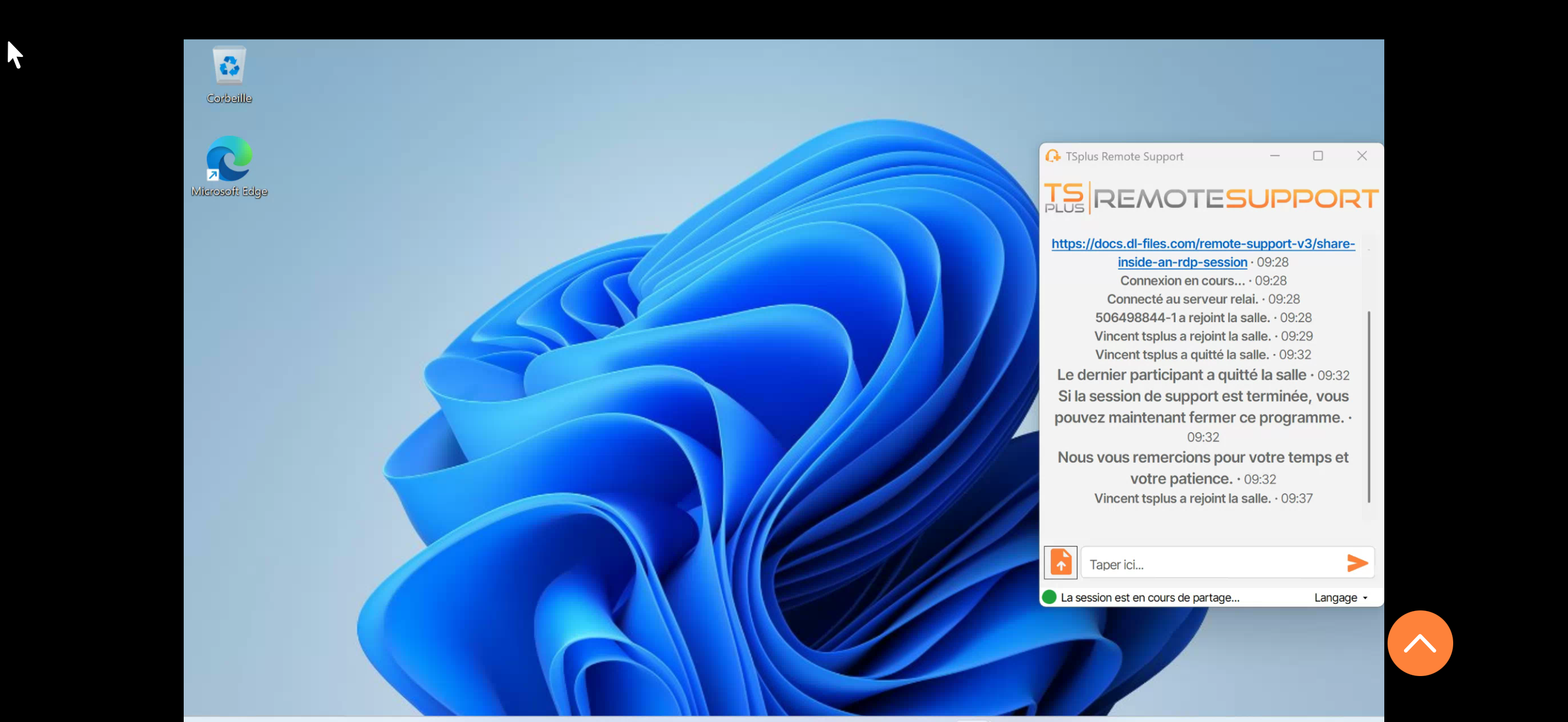
A floating toolbar provides access to all controls: keyboard, modifier keys (Ctrl, Alt, Shift), touch mode switch, multi-monitor selection, and more.
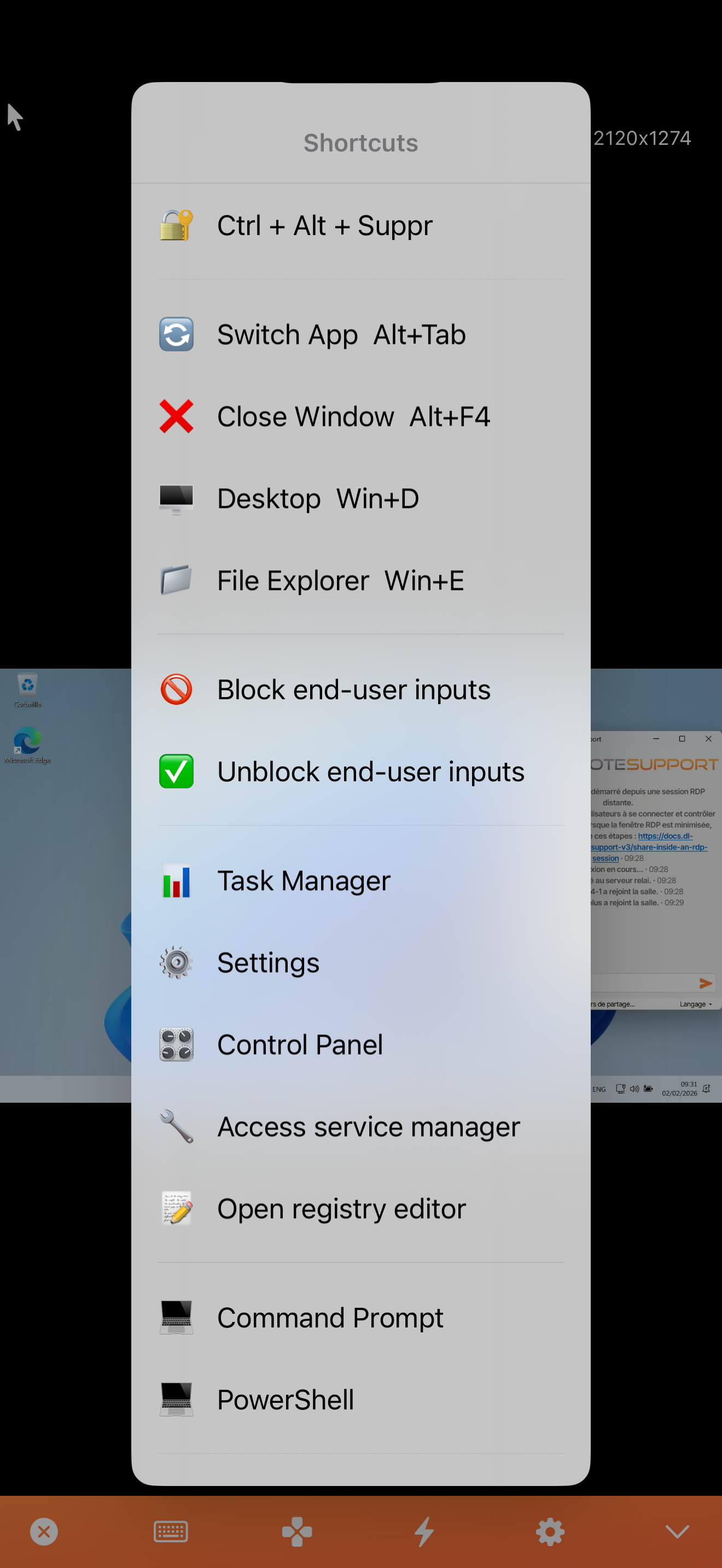
For a complete guide on all touch controls and toolbar features, see Control a Remote Session on iOS.
iPad
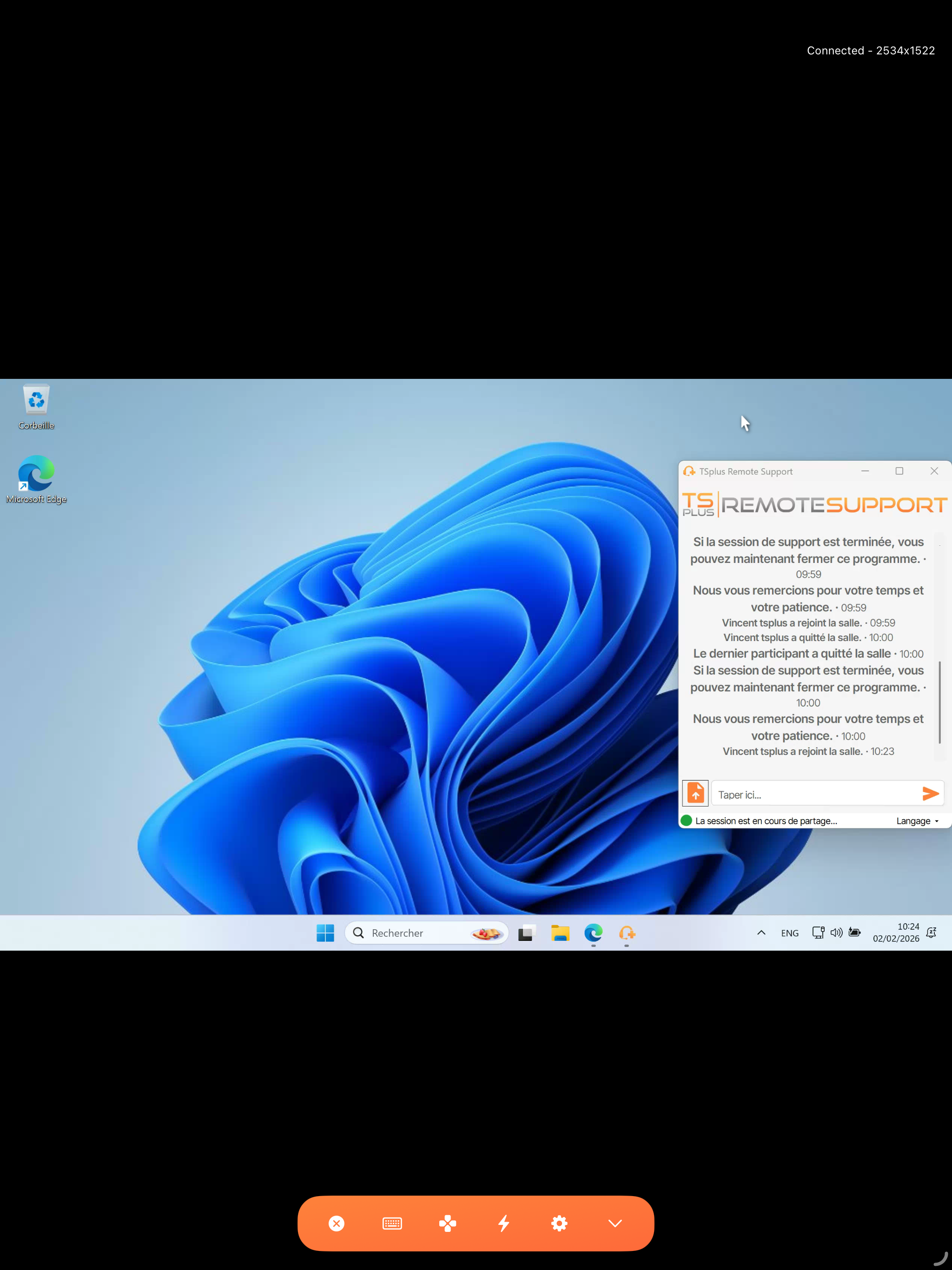
The experience is identical on iPad, with an interface optimized for larger screens.
Settings
Tap the Settings tab to access app preferences:
- Account: View your profile, change your display name, email, or password.
- Language: Choose from 13 available languages.
- API Hostname: Configure a custom server address (for self-hosted deployments).
- Logs: View diagnostic logs for troubleshooting.
- Rate the App: Share your feedback on the App Store.
Need Help?
If you encounter any issue, please contact our support team at support.tsplus.net.
TSplus Remote Support is available as a free, fully featured 15-day trial. The trial begins when you initiate your first remote session.