

Open Files on Client Side
Overview
This feature is a powerful one. It allows to open documents located on the server on the client side depending on its file extension.
For instance, you can open a Microsoft Office Word document without having Office installed on your server.
The .docx (or .xlsx) document is automatically uploaded on the user side where the local Office will be used to open it.
If you are hosting your application on a Cloud server and if your application is generating an Excel, Access or Word document, this feature prevents to care about Office licenses on the server.
When using a TSplus Connection Client, any modifications saved by the user on the client side are automatically synchronized back to the server by default. There is no need to manually transfer the file back — once the user saves the document locally, the updated version replaces the original file on the server.
If the automatic synchronization causes issues with certain third-party applications (e.g. application freeze due to file locking conflicts), an administrator can disable the sync-back directly from the AdminTool.
Configuring a File Type to open on the client side
Local disk redirection C is necessary to enable the use of Open files on client side.
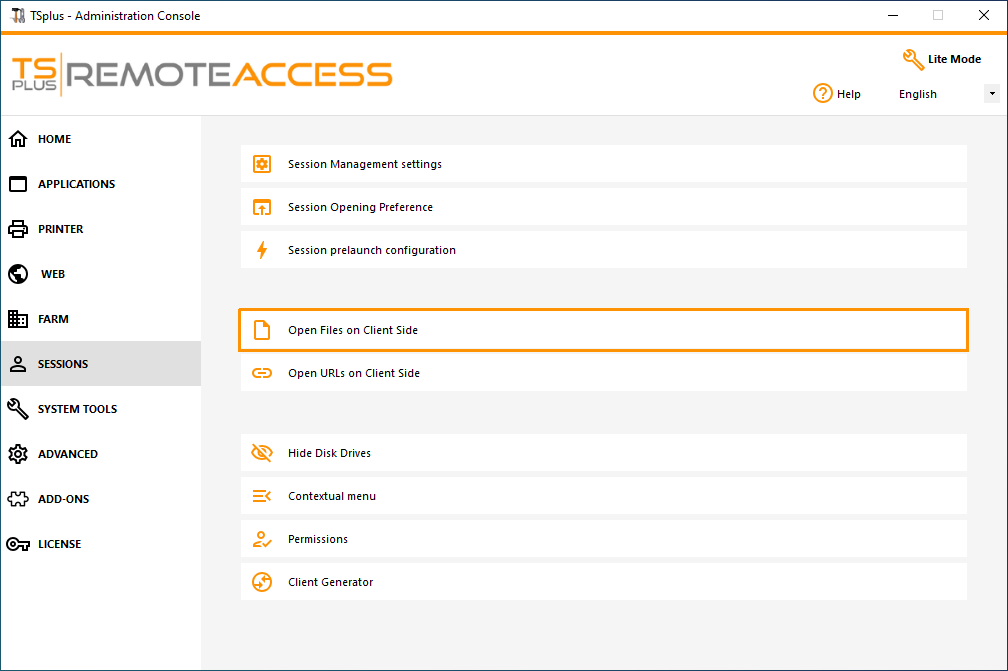
The tile “Open Files on Client Side” is located in the “Sessions - Settings” tab of the AdminTool. Click on it to display the configuration window:
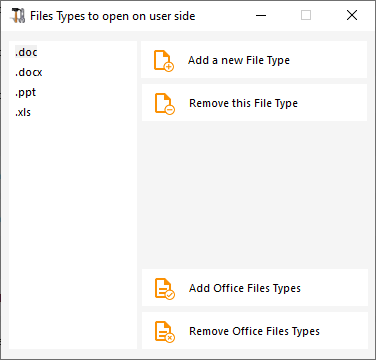
The button “Add a new File Type” allows you to add an extension (such as “.docx” for Microsoft Office Word 2007-2010) to the list.
All files with an extension included in this list will be opened on the client side, provided that a TSplus connection client is used and that the local drive containing the Windows installation is redirected within the remote session (C: drive most of the time).
- Any generated Terminal Service Plus Client (RemoteApp or RDP)
- Any Windows connection from the Terminal Service Plus Web Portal
- Any HTML5 connection from Terminal Service Plus Web Portal
Warning: this feature is not supported for:
- Any RDP client (mstsc for example)
Note: The automatic save-back to the server is only available with the Connection Client. With HTML5, the file is downloaded to the browser — changes made locally are not sent back to the server automatically.
Saving modifications back to the server (Connection Client only)
When a file is opened on the client side via a TSplus Connection Client, the server monitors the file in real time. Any save performed by the user is automatically propagated back to the original server file.
Conflict detection: if the original file has been modified on the server by another user since it was opened, a conflict copy is automatically created alongside the original, named <filename>-<username>-(N).<extension> (e.g. report-John-(1).xlsx). A dialog informs the user that their version has been saved under the conflict name.
Note: this automatic save-back is only available when using a TSplus Connection Client. With an HTML5 connection, the file is downloaded to the browser — modifications are not automatically sent back to the server.
Disabling automatic synchronization back to the server
In some cases, the background file watcher used for automatic sync can conflict with third-party applications that lock files while they are open, causing those applications to freeze. To address this, an administrator can disable the automatic synchronization entirely.
The option is available as a checkbox in the Open On Client configuration window in the AdminTool.
When this option is enabled:
- The file is still copied to the client at opening, as usual.
- The sync process terminates immediately after the initial copy — no background watcher is started.
- Any modifications made by the user on the client side are not automatically sent back to the server.
Note: Use this option only when required by application compatibility. With sync disabled, users are responsible for manually transferring any modified files back to the server.
File Association Reapplication Behavior
By default, file associations are reapplied automatically upon every user session connection (including RDP sessions).
Configuration: This behavior is controlled by the “OpenOnClient - Force OpenOnClient usage” setting, located under Advanced Settings > Sessions in the AdminTool.
Yes (Default): Reapplies file associations at each login.
No: Disables automatic reapplication upon connection.
Logging and Troubleshooting
The Open On Client mechanism uses a dedicated log file distinct from the standard session logs:
Log Location: C:\wsession\OpenOnClient\SetFileTypeAssociation.log
Note: Standard trace logs located in do not capture Open On Client activity.
Always refer to when troubleshooting file association issues.C:\wsession\traceSetFileTypeAssociation.log
Synchronization to a New Application Server
When synchronizing settings from the Gateway (Farm Manager), all Open On Client settings—including configured file extensions
and associated advanced options—are automatically pushed to every application server in the farm, including newly added servers.
Automatic Distribution: Open On Client configuration is synchronized alongside general settings and application configurations.
No Additional Action Required: No manual steps are necessary on newly joined application servers following a standard farm synchronization.
Troubleshooting
If you have configured a file type to open on client side, and it is not working (i.e. the file is still opened on its own computer), then we advise you to check the “Open With” list in Windows context-menu:
- right-click on the file.
- click on the “Open With” menu item.
- if there is more than one application in this list, click on “Choose default program” and select “OpenOnClient.exe”.
This Terminal Service Plus great tool applies its configuration to all users using the computer, however please keep in mind the following rules:
- Windows allows each user to change this default opening program with another program of its choice.
- Using HTML5 connection client, the file will be downloaded and managed by the local browser. Some browsers treat some file types in specific ways, so browser’s settings should also be checked twice.
These rules explain most of the issues when using the Open On Client feature, that is why we advise you to start by checking the default program:
- for the logged user on the server
- for the user on the client
- for the browser on the client (when using HTML5)