

Manage Devices on iOS
The Devices tab in the iOS app lets you view and manage all your registered remote devices. This is especially useful when you have devices configured for unattended access, as it allows you to connect with a single tap.
Devices List
Tap the Devices tab at the bottom of the screen to see your registered devices.
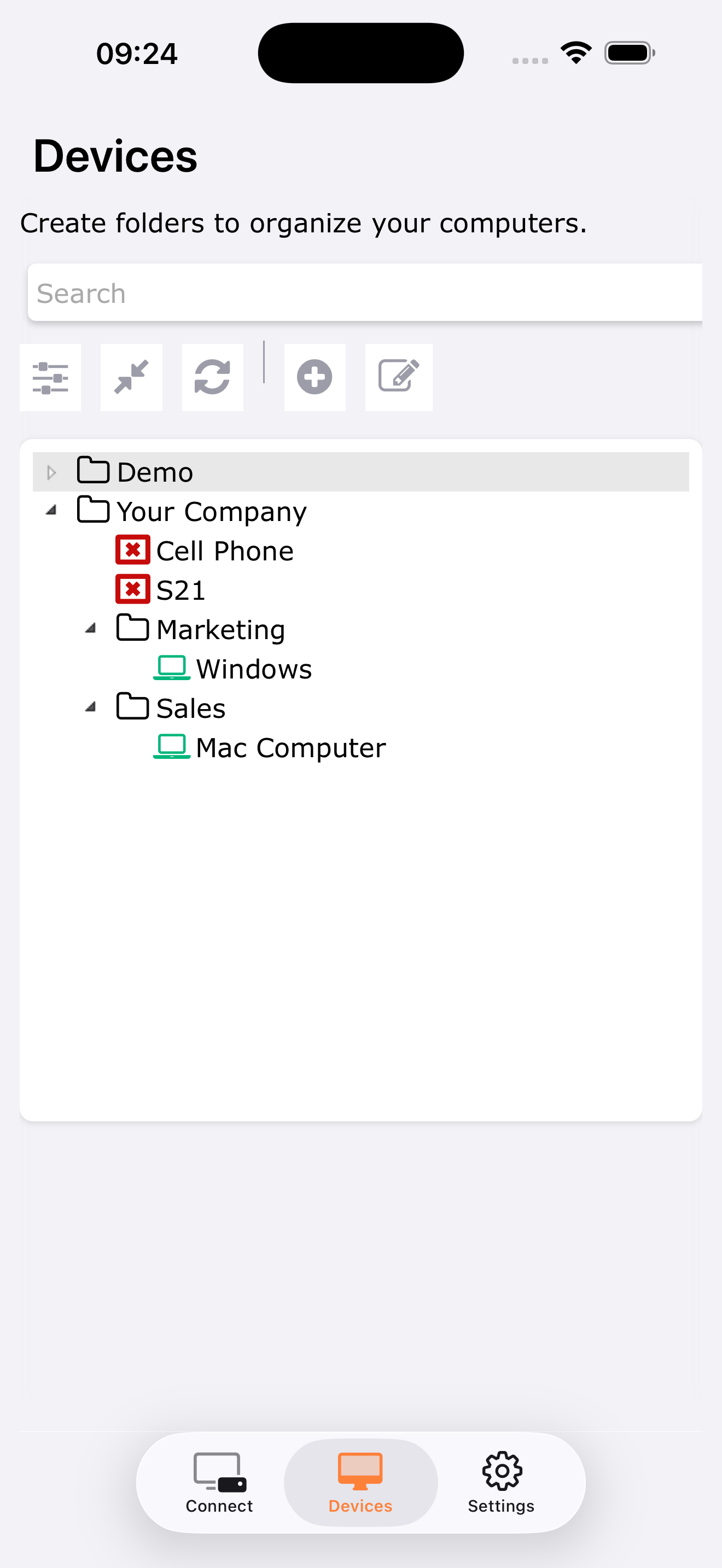
Each computer entry displays:
- Device name — The custom name you assigned, or the device ID by default.
- Online/Offline status — A real-time indicator showing whether the device is currently reachable.
Connect to a Device
To start a remote session, simply tap on an online device in the list. The connection will be established automatically using the stored credentials.
This one-tap connection is ideal for unattended access scenarios, where no end-user action is required on the remote side.
For devices that are offline, the connection button will be disabled. The status updates automatically — once the remote device comes back online, it will appear as available.
Add a Device
To add a new device to your list:
- Tap the Add button (+ icon).
- Enter the Device ID (the 9-digit Remote Support ID).
- Optionally, enter a custom name for easier identification.
- If you have unattended access, you can store the password for one-tap connections.
- Confirm to save.
The device will appear in your list and its online status will be checked automatically.
Remove a Device
To remove a device from your list, swipe left on the device entry and tap Delete.
The device is only removed from your personal list — it is not affected on the remote side.
Rename a Device
To rename a device, tap on its entry to open the details, then edit the name field. The new name is saved automatically.
iPad
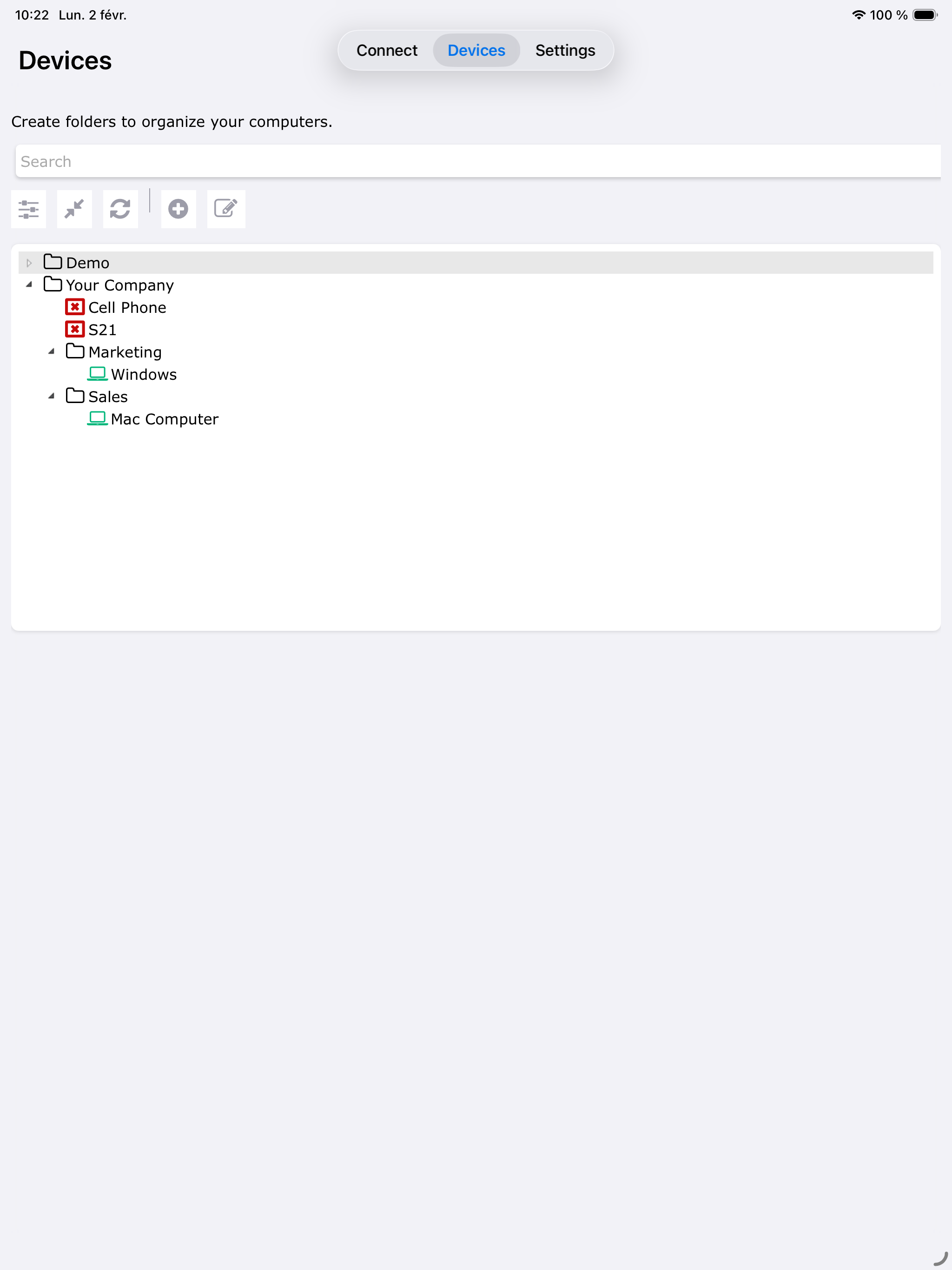
On iPad, the Devices tab takes advantage of the larger screen to display more information at a glance.
Synchronization
Your devices list is synchronized with your TSplus Remote Support account. Any device you add or remove from the iOS app will also appear (or be removed) in the Windows and Android clients when using the same account.
For more information on managing devices and unattended access, see: