

Web Portal with SSO (beta)
Key prerequisites and limitations
Web Portal 2026 with SSO is designed for the Creative theme and uses all customizations from AdminTool > Web > Web Portal Customization. If the selected theme is not Creative , the Web Portal does not display.
When enabled in a farm, all servers must run the same Remote Access version and be enabled for Web Portal 2026 with SSO
This feature is Beta and should not be deployed on production servers.
Why a new Web Portal?
Compared with the previous Web Portal, this implementation provides higher reliability and better performance under load. Plus, it allows:
-
Advanced SSO capabilities
- Windows Integrated Authentication (Negotiate / Kerberos / NTLM)
- Third-party identity provider integration (currently SAML)
-
Stronger security controls
- Built-in anti-forgery protections
- Endpoint rate limiting
- Modern authentication and cookie/session controls
Its architecture will allow us to easily address any potential security audit feedback.
It is also a more accessible product through recommendations and improved contrast.
Web server flexibility (Kestrel by default)
The application is not tied to one front-end web server. By default, it runs on Kestrel (HTTP port 81). It can be fronted by IIS or Apache as a reverse proxy by changing web server configuration.
Example: Apache reverse proxy to Web Portal service
# Apache VirtualHost exampleProxyPreserveHost OnProxyPass        /  http://127.0.0.1:81/ProxyPassReverse /  http://127.0.0.1:81/
RequestHeader set X-Forwarded-Proto "https"RequestHeader set X-Forwarded-For "%{REMOTE_ADDR}s"
This keeps Web Portal logic unchanged while Apache handles public HTTP/HTTPS exposure.
Please contact the development team if interested as this scenario is not yet accessible from AdminTool program and must be configured manually.
Entra ID SSO Configuration
Web Portal 2026 - Entra ID SSO Configuration
These instructions apply to TSplus Remote Access “Web Mobile” and Enterprise editions, versions 19.20.3.10 and later.
Please note that our new Web Portal 2026 is in beta and not ready for production use.
The Azure portion of this guide is intended as an example only. Managing and configuring your Azure environment is outside the scope of our support.
This is a compliment to our official documentation: https://support.tsplus.net/a/solutions/articles/44002799917
Enable Web Portal 2026 with SSO
- Open AdminTool
- Go to: Web > Web server
- Enable: Web portal 2026 with SSO
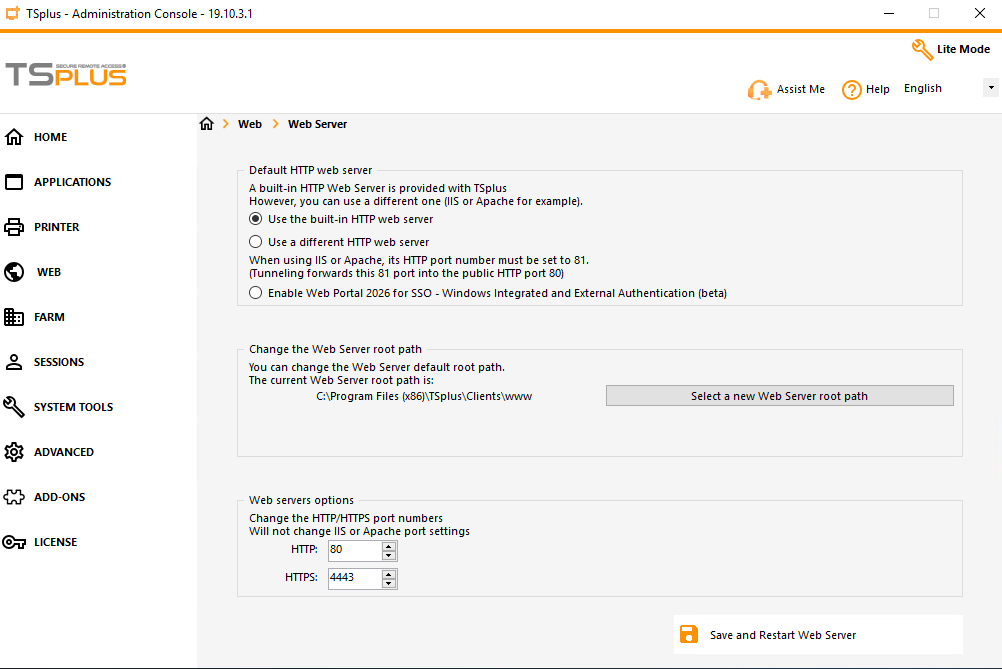
Important : this option is Beta. Use only in test environments.
The username must be in email-style format, but for Entra ID, this should generally be the user’s UPN, not the user’s actual email address.
Supported sign-in modes
Web Portal 2026 with SSO supports:
- Traditional login form using Windows credentials
- Web credentials. See: https://docs.tsplus.net/tsplus/web-credentials/
- Windows Integrated Authentication (automatic in trusted / local scenarios)
- External identity provider via SAML , such as Entra ID (formerly Azure AD) or Okta
Note: Support for external authentification via OIDC planned later, on request
2FA behavior
2FA is applied to standard account flows, including:
- Login form using Windows credentials
- Web credentials
- Windows Integrated Authentication
External authentication providers often enforce their own MFA / 2FA. So 2FA configuration set in Remote Access 2FA addon does not apply to this scenario.
Local-network bypass is available through
CustomSettings:TwoFaBypassForLocalNetwork
parameter located in file:
C:\Program Files (x86)\TSplus\Clients\webportal\appsettings.json
, where
C:\Program Files (x86)\TSplus
is TSplus Remote Access setup folder. When enabled, bypass occurs only if client and gateway are in the same private subnet.
Configure Windows authentication flow
For users signing in with Windows authentication, one of the following is required:
-
Pre-register credentials with the TSplus command:
AdminTool.exe /windowscredential-addorupdate. See documentation at https://docs.tsplus.net/tsplus/commands-list/#add-or-update-credentials-to-the-windows-credentials-manager-windowscredential-addorupdate - Or let the user sign in once through the Web Portal login form with Windows credentials.
For configuring Windows Integrated authentication, please see: Enable Windows Integrated Authentication on an Active Directory Domain. As this authentication mode is arduous to configure, customers often favor setting up an external identify provider.
Configure external authentication (SAML)
Required settings for the external application
The external application must be configured as follow:
-
Single Sign-On URLmust be set to the Web Portal SAML consumer service endpoint, e.g. https://mywebportal.company.com/Saml/acs -
Audience URI (SP ENtity ID)must be set to the Web Portal domain name or IP address, e.g. https://mywebportal.company.com -
Name ID formatmust be set to EmailAddress -
Application usernamemust be set to Email , as the left part will identify the Windows account username
Required settings in
appsettings.json
The file
appsettings.json
is located in
C:\Program Files (x86)\TSplus\Clients\webportal
, where
C:\Program Files (x86)\TSplus
is TSplus Remote Access setup folder.
Edit the
Saml2
section:
-
IdPMetadata -
Issuer -
SingleSignOnDestination(optional if metadata provides it) -
SingleLogoutDestination(optional if metadata provides it) - Certificate-related fields
For example, using the third-party identity provider okta:
"Saml2": { "IdPMetadata": "https://mycompany.okta.com/app/abcdfegh12345678/sso/saml/metadata", "Issuer": "https://portal.mycompany.com", "SingleSignOnDestination": "https://mycompany.okta.com/app/mycompany_portalsaml_1/abcdfegh12345678/sso/saml", "SingleLogoutDestination": "https://mycompany.okta.com", "SignatureAlgorithm": "http://www.w3.org/2001/04/xmldsig-more#rsa-sha256", "SigningCertificateFile": "", "SigningCertificatePassword": "", "SignatureValidationCertificateFile": "okta.identity.saml2.portal.cert", "CertificateValidationMode": "ChainTrust", "RevocationMode": "Offline", "XmlCanonicalizationMethod": "http://www.w3.org/2001/10/xml-exc-c14n#"}The issuer setting sets the audience URI, as defined on the external identity provider side.
if the
SignatureValidationCertificateFile
setting is set to a value other than
None
, then please make sure that the certificate is considered valid on the application server.
This may require to add the certificate to the list of trusted certificate machine-wide.
Windows password availability for session launch
For external SAML authentication, launching sessions still requires usable Windows credentials. Use one of:
-
Register Windows credentials with command:
AdminTool.exe /windowscredential-addorupdate. See documentation at https://docs.tsplus.net/tsplus/commands-list/#add-or-update-credentials-to-the-windows-credentials-manager-windowscredential-addorupdate -
Or forward password from IdP claim by setting
CustomSettings:UseSamlPasswordClaimto the claim type containing the Windows password.
Typically, the Web Portal will take the part before the ’@’ of the user email address as the Windows account’s username.
Please note that external authentication works with local users at the moment.
If no password is available from claim or credential store, user validation fails.
Okta SSO Configuration
These instructions apply to TSplus Remote Access “Web Mobile” and Enterprise editions, versions 19.20.3.10 and later.
Please note that our new Web Portal 2026 is in beta and not ready for production use.
The Okta portion of this guide is intended only as an example. Managing and configuring your Okta environment is outside the scope of our support.
Please note that SSO authentication is currently supported only when users log in through your SSO portal.
SSO will not be used if users go directly to the Remote Access server login page.
https://terminalserviceplus.freshdesk.com/support/solutions/articles/44002812206
Complete appsettings.json configuration file reference
The file
appsettings.json
is located in
C:\Program Files (x86)\TSplus\Clients\webportal
, where
C:\Program Files (x86)\TSplus
is TSplus Remote Access setup folder.
Logging
| Parameter | Purpose | Possible values | Default |
|---|---|---|---|
Logging:LogLevel:Default
|
Global minimum log level. |
Trace
,
Debug
,
Information
,
Warning
,
Error
,
Critical
,
None
|
Information
|
Logging:LogLevel:Microsoft.AspNetCore
|
ASP.NET Core framework log level. | Same as above |
Warning
|
Logging:LogLevel:Microsoft.AspNetCore.Authentication
|
Authentication subsystem log level. | Same as above |
Warning
|
Global host setting
| Parameter | Purpose | Possible values | Default |
|---|---|---|---|
AllowedHosts
|
Host header filtering for ASP.NET Core host protection. |
*
(all) or semicolon-separated host list
|
*
|
IpRateLimiting
| Parameter | Purpose | Possible values | Default |
|---|---|---|---|
IpRateLimiting:EnableEndpointRateLimiting
|
Enables endpoint-specific throttling rules. |
true
/
false
|
true
|
IpRateLimiting:StackBlockedRequests
|
If
true
, blocked requests continue increasing counters.
|
true
/
false
|
false
|
IpRateLimiting:HttpStatusCode
|
HTTP status returned when request is blocked. |
Integer HTTP code (typically
429
)
|
429
|
IpRateLimiting:RealIpHeader
|
Header used to resolve client IP behind proxy. | Header name |
X-Forwarded-For
|
IpRateLimiting:ClientIdHeader
|
Optional client-id header for custom rate limiting. | Header name |
X-ClientId
|
IpRateLimiting:GeneralRules
Each rule object has:
| Parameter | Purpose | Possible values | Default in shipped file |
|---|---|---|---|
Endpoint
|
Route/method pattern to protect. |
Format
VERB:/path
|
Multiple defaults (see below) |
Period
|
Rate window. |
e.g.
1s
,
1m
,
5m
,
1h
,
1d
|
5m
(for all default rules)
|
Limit
|
Max requests in period. | Positive integer |
5
(for all default rules)
|
Saml2
| Parameter | Purpose | Possible values | Default |
|---|---|---|---|
Saml2:IdPMetadata
|
IdP metadata URL used to load SAML provider configuration. | Valid HTTPS URL |
""
|
Saml2:Issuer
|
SP entity ID (this Web Portal identity). | URI string |
""
|
Saml2:SingleSignOnDestination
|
IdP SSO endpoint URL (can be auto-resolved from metadata). | HTTPS URL |
""
|
Saml2:SingleLogoutDestination
|
IdP SLO endpoint URL (can be auto-resolved from metadata). | HTTPS URL |
""
|
Saml2:SignatureAlgorithm
|
XML signature algorithm. | URI value accepted by SAML library |
http://www.w3.org/2001/04/xmldsig-more#rsa-sha256
|
Saml2:SigningCertificateFile
|
Local SP signing certificate file (relative to app base path). | File name/path |
""
|
Saml2:SigningCertificatePassword
|
Password for signing certificate file. | String |
""
|
Saml2:SignatureValidationCertificateFile
|
IdP certificate file used to validate signatures (optional if metadata provides certs). | File name/path |
""
|
Saml2:CertificateValidationMode
|
Certificate chain validation mode. |
None
,
PeerTrust
,
ChainTrust
,
PeerOrChainTrust
,
CustomRootTrust
|
ChainTrust
|
Saml2:RevocationMode
|
Certificate revocation behavior. |
NoCheck
,
Online
,
Offline
|
Offline
|
Saml2:XmlCanonicalizationMethod
|
XML canonicalization algorithm URI. | XML-DSig canonicalization URI |
http://www.w3.org/2001/10/xml-exc-c14n#
|
CustomSettings
In
appsettings.json
, these values are stored as strings (
"true"
/
"false"
) and mapped to booleans by .NET configuration binding.
| Parameter | Purpose | Possible values | Default |
|---|---|---|---|
CustomSettings:UseApplicationFullPath
|
Controls whether application full path is used when listing/launching assigned apps. |
"true"
/
"false"
|
"false"
|
CustomSettings:EnableWindowsAuthentication
|
Allows automatic Windows authentication on localhost/loopback scenario and from domain-joined machines with a trust relationship. |
"true"
/
"false"
|
"true"
|
CustomSettings:AllowOnlyExternalAuthentication
|
Allow only external authentication scenarios. |
"true"
/
"false"
|
"false"
|
CustomSettings:EnablePasswordEncryption
|
Encrypts domain/username/password in HTML5 launch connection string using RSA parameters. |
"true"
/
"false"
|
"true"
|
CustomSettings:TwoFaBypassForLocalNetwork
|
Bypasses Web Portal 2FA when client is in same private subnet as server. |
"true"
/
"false"
|
"false"
|
CustomSettings:UseSamlPasswordClaim
|
SAML claim type used as forwarded Windows password for session launch. | Claim type URI/name or empty string |
""
|
Troubleshooting
Web Portal 2026 with SSO logs can be enabled from AdminTool > Advanced > Logs > Web Portal log.
The resulting
WebPortal.log
log file is found in
C:\Program Files (x86)\TSplus\Clients\webportal
, where
C:\Program Files (x86)\TSplus
is TSplus Remote Access setup folder.