

Ask the User to Accept Incoming Connections
Remote Support can ask the user of a computer to accept an incoming connection before the support agent sees or controls anything. The user sees who wants to connect and decides: nothing is shared until they accept.
The request can be enabled on the computer itself, or by the administrators of your account for all your computers or for some folders of computers.
What the user sees
When a support agent connects, a window appears on top of the other windows of the computer, with a sound:
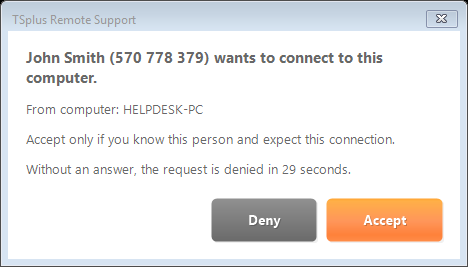
- The name of the support agent and the name of their computer.
- A reminder to accept only a person they know and a connection they expect.
- A countdown. Without an answer, the request is denied when it reaches zero.
The window does not take the keyboard focus when it appears, so a key typed in another window cannot answer it. Once the user activates the window, Deny has the focus first, Tab moves to Accept, and Escape denies. Closing the window also denies the connection.
Until the user accepts:
- The support agent receives no image of the screen.
- Their mouse and keyboard have no effect, and no file or clipboard content is transferred.
- No session is opened or recorded.
What the support agent sees
While the user is being asked, the support agent sees the message “Waiting for the remote user to accept the connection…”, with a bar showing the time left.
- If the user accepts, the session starts as usual.
- If the user denies, the support agent sees “The remote user denied the connection.”, and the window closes.
- If the user does not answer in time, the support agent sees “The remote user did not answer the connection request in time.”
To try again, the support agent connects again with the ID and password of the computer.
Enable the request on a computer
Click on the Settings button, then choose a value for Ask before an incoming connection in the general settings:

- Follow the account settings (default): the user is asked only if the administrators of the account require it. See Require the request for your computers.
- Always ask: the user is always asked, whatever the account settings.
- Never ask: the user is never asked, whatever the account settings.
The setting of the computer has priority over the account settings.
Require the request for your computers
The administrators of a subscription can require the request for the computers whose license belongs to the subscription, without changing anything on these computers. The computers must keep Ask before an incoming connection on Follow the account settings, which is the default value.
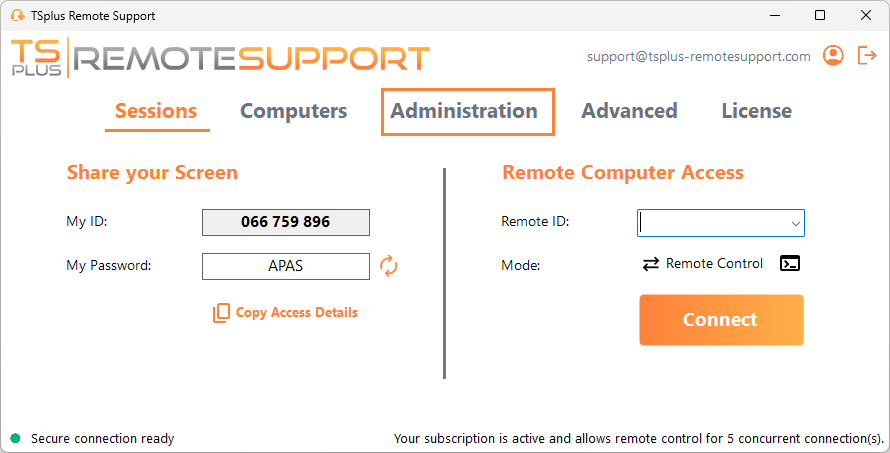
To open the Administration Console, click on the “Administration” menu. You must be an administrator of your subscription.
For all the computers of the account
In the Security tab, check Require the user of the computer to accept an incoming connection, and choose the time given to the user to answer: 15, 30, 60 or 120 seconds. The change is saved at once.
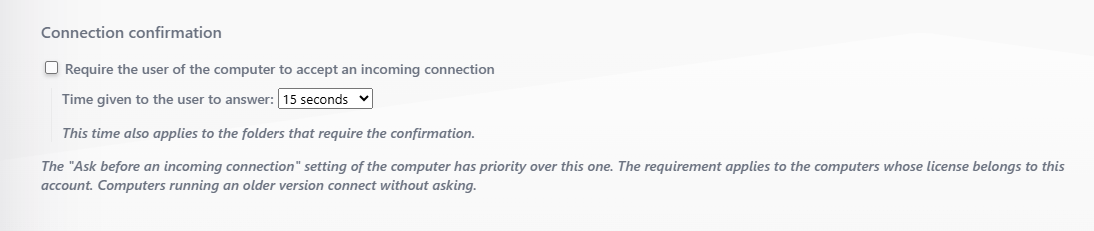
The time given to the user to answer also applies to the folders that require the request.
For the computers of a folder
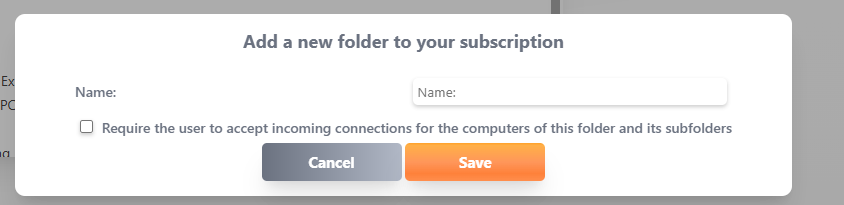
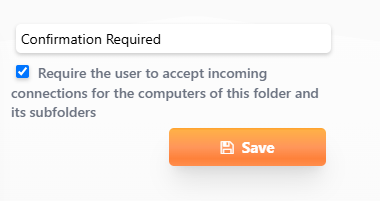
In the Computers tab, check Require the user to accept incoming connections for the computers of this folder and its subfolders when you create a folder, or in the panel of an existing folder, then save.
A shield is displayed next to the name of the folders that require the request:
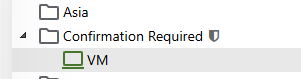
- The request applies to the computers of the folder and of all its subfolders.
- A computer listed in several folders is asked as soon as one of them, or one of their parent folders, requires the request.
- Renaming or moving a folder keeps its setting.
A change made in the Administration Console applies to the next connections, within 15 seconds.
Unattended access
With unattended access, the user is asked in the same way when they are working on the computer.
When nobody can answer, the support agent connects without a request:
- No user is logged on.
- The session of the user is locked or disconnected.
As soon as a user comes back while the support agent is connected (unlocks the session, reconnects or logs on), the screen sharing and the remote control are paused and the user is asked. If they accept, the session goes on. Otherwise, the support agent is disconnected.
If the support agent unlocks the session or logs on themselves, by typing the Windows password in their own window, the user is not asked.
Remote command prompt
When a support agent opens a remote command prompt on a computer with unattended access, the user logged on to the computer is asked first, with the same window:
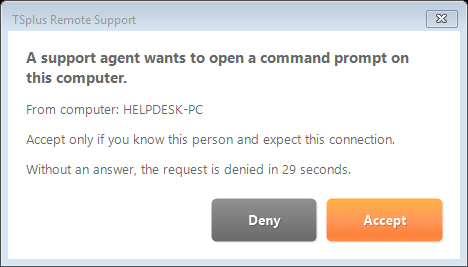
The command prompt opens only after the user accepts. When several users are logged on, the user of the console is asked first, then the other logged on users. If no user is logged on, or their sessions are locked, the command prompt opens without a request.
Compatibility
- The request is shown on Windows computers running a version released with this feature.
- Older Windows versions, macOS and Android computers are not asked yet: the support agent connects as before, even if the account requires the request.
- Support agents using an older Windows version, macOS, iOS or Android can connect to a computer that asks its user. They see no waiting message while the user is asked. If the user denies or does not answer, they see the message “You’re not authorized to connect to this client.”